Step 1
Copy the server address
Click "Copy" next to the address. You will paste it into Claude in a moment.
Agilix server address (MCP)
https://api.agilix.dog/mcp The same address works in Claude and in ChatGPT.
Part 1
Add Agilix as a connector in Claude, sign in and turn it on in a chat.
Step 1
Click "Copy" next to the address. You will paste it into Claude in a moment.
Agilix server address (MCP)
https://api.agilix.dog/mcp The same address works in Claude and in ChatGPT.
Step 2
Sign in at claude.ai in your browser. Open "Customize", then "Connectors".
Click "+" and choose "Add custom connector".
Connectors
+Add custom connector
Step 3
Type Agilix in the "Name" field. Paste the copied address into "Remote MCP server URL".
Leave "Advanced settings" empty. Click "Add", then "Connect".
Add custom connector
Advanced settings
Step 4
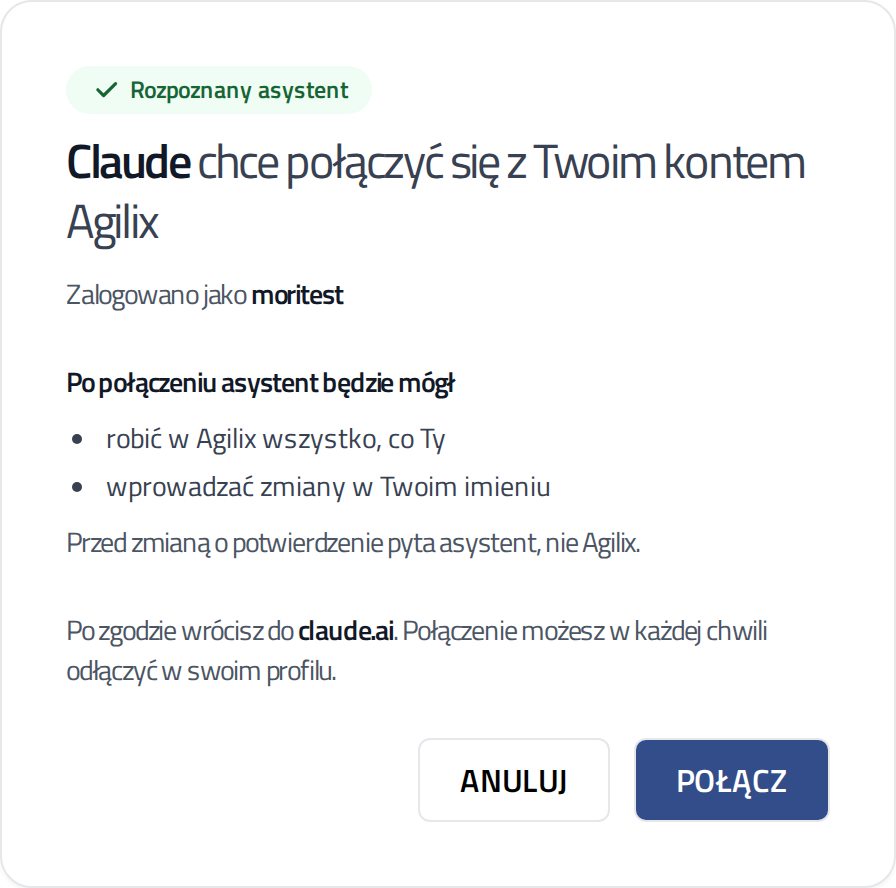
Claude opens an Agilix page. Sign in if asked.
Check that the page recognised Claude. Click "Connect" ("Połącz"). You return to Claude and the connector is ready.
Step 5
In a new chat, click "+" below the message box. Choose "Connectors" and switch Agilix on.
Connectors
Agilix
Step 6
Write normally, for example: "What's on at my club this week?".
The first time, Claude asks for permission to use the Agilix tool. You can allow it once or always. Before every change the assistant still shows a summary.
Move Thursday's beginners class to 7 pm.
Agilix · update_class
Custom connectors also work on Claude's free plan. The free plan allows one such connector.
On Team and Enterprise plans, the organisation owner adds the connector. They do it in the organisation settings, under connectors. Then each member connects with their own Agilix account.
A connector added in the browser also works in the Claude phone app. Just sign in to the same Claude account.
Help
Tell us which step stopped you. We will help you finish connecting.